
ONLINE-TRAINING

  • HOME (START)
  • OVERVIEW
    • Training Videos
    • Touch Panels
    • Typical Room Environment
    • Graphical User Interface
    • Control Interfaces
    • Emergency & Safety
  • COACHES OFFICE
    • Home Page
    • Video Router
    • Presets
    • IPTV
    • Video Wall
    • Multi-Viewer
    • Global Power
    • Global Audio
    • Microphone
    • Coach Audio
    • Coach Video
  • KINGS LOCKER ROOM
    • Home Page
    • Multi-Viewer
    • IPTV
    • Audio
    • Video
  • PLAYERS LOUNGE
    • Home Page
    • Multi-Viewer
    • IPTV
    • Audio
    • Video
  • FITNESS AREA
    • Home Page
    • IPTV
    • Hydrotherapy
    • Training Room
    • Training Office
  • EQUIPMENT AREA
    • Home Page
    • IPTV
    • Equipment Area Plan
  • INFORMATION & DOWNLOADS
    • FAQ's & Downloads
    • Audio Visual Rack
    • Pro's & Cons
    • Brightsign Configuration

TOUCH PANEL INTERFACE OVERVIEW


1 2 3
4 5 6 7 8 9 10 11 12 13 14 15 16 17 18 19

This page is interactive, it will function as if it were in use. Hover your mouse icon over the password area to see he description.


ROOM VIDEO

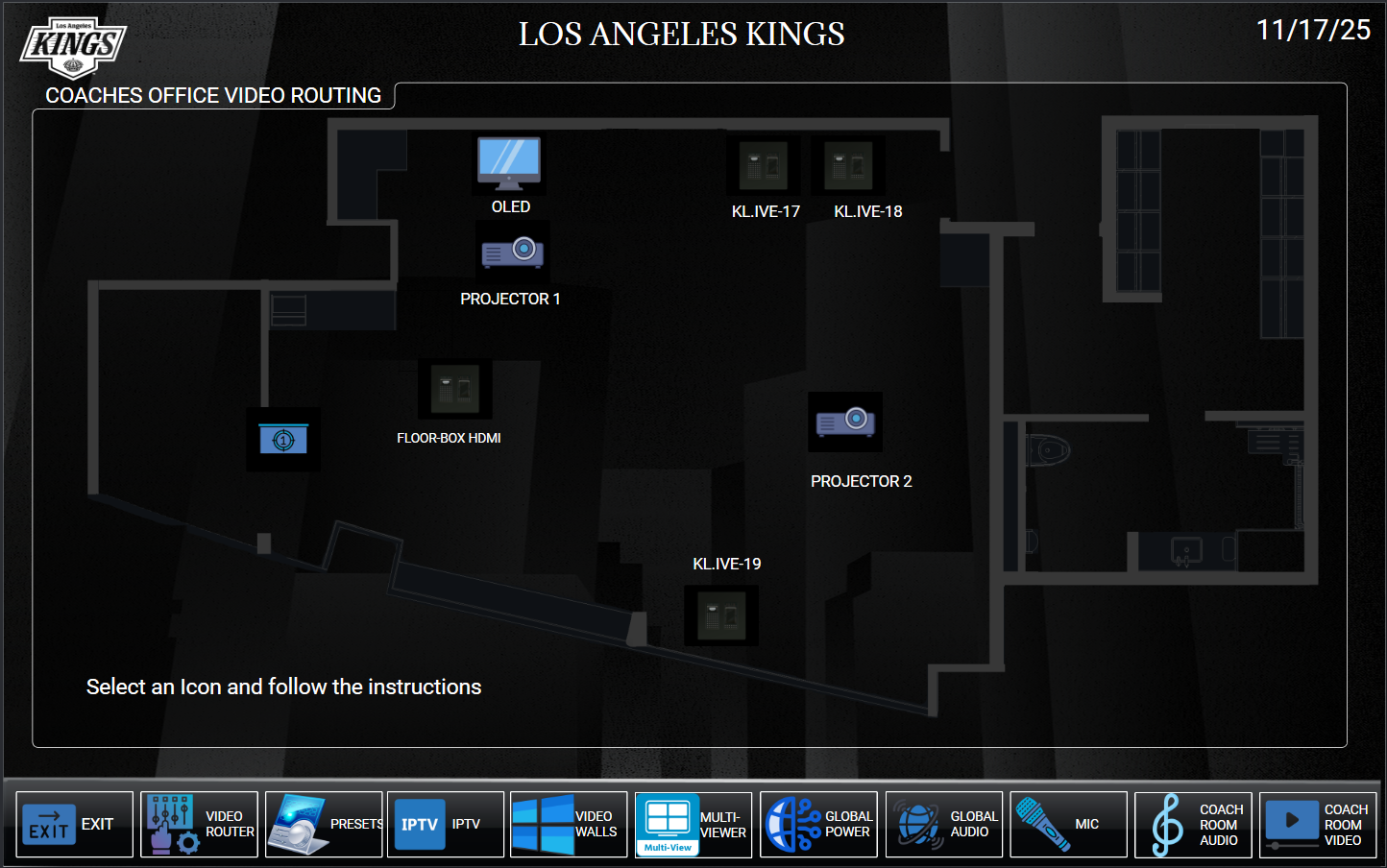
The touch panel displays four kinds of icons listed below. The Icons are shown on a Plan View of the room with the same Identity numbers and locations on each wall plate.

  1. SCREEN ICON - Displays a popup page with controls that raises and lowers the screen for the area identified on the plan view..
  2. OLED ICON. - Selecting will display a popup page for the OLED, this popup page will also have video routing and OLED controls.
  3. PROJECTOR ICON - Selecting will display a popup page for the PROJECTOR, this popup page will also have video routing and PROJECTOR controls.
  4. WALLPLATE ICON - Selecting will display a popup page for the HDMI Wallplate, this popup page will also have video routing controls.

© Copyright ACS Advanced Cable Solutions. All Rights Reserved

Advanced Cable Solutions, 28343 Kelly Johnson Parkway, Unit 100, Valencia, CA 91355. acsdbi.com