TOUCH PANEL INTERFACE OVERVIEW
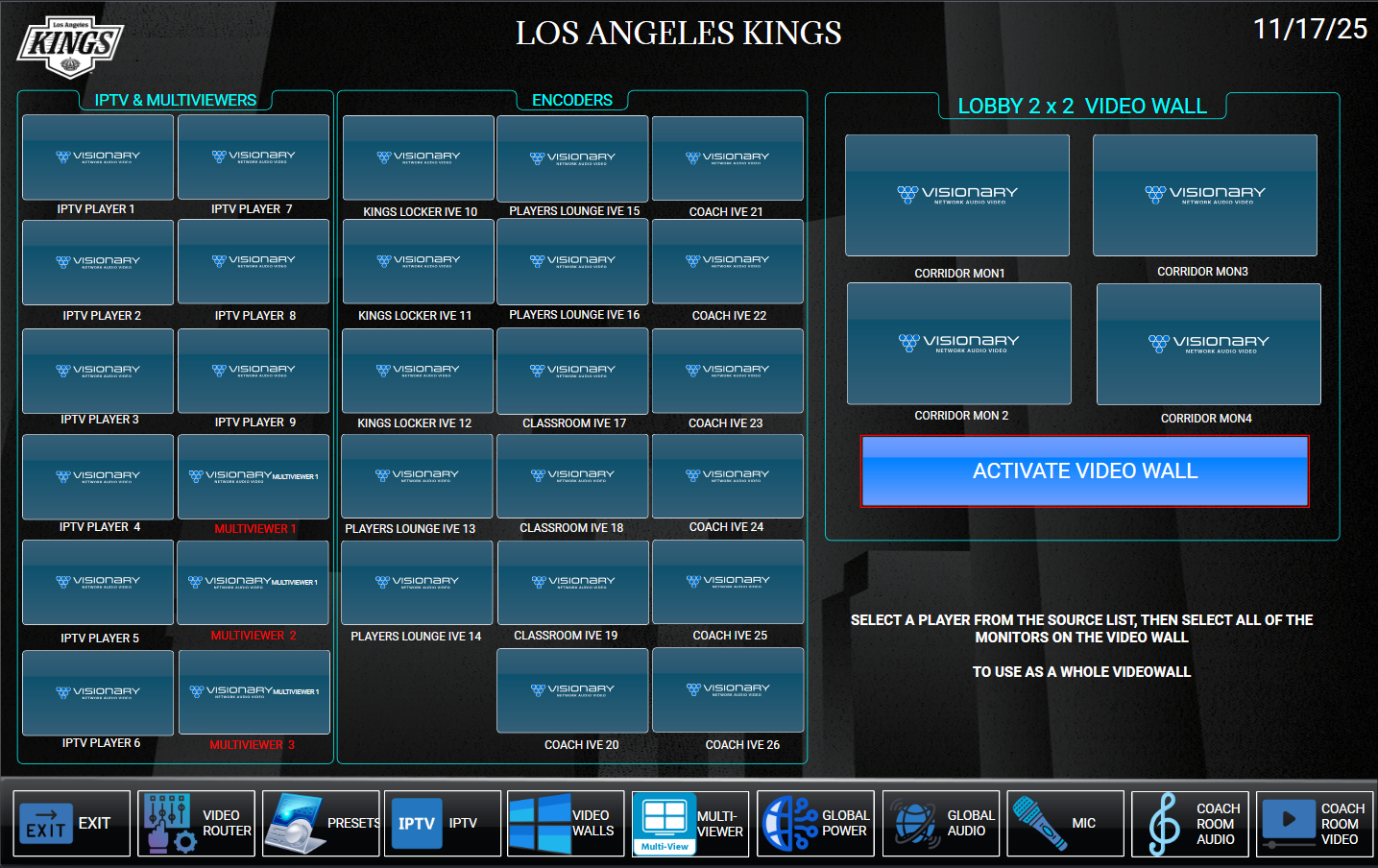
This page is interactive, it will function as if it were in use. Hover your mouse icon over the password area to see he description. Selecting the icon will flip to see that action.
"VIDEO WALL": (Administration Panel)
The video wall has two modes of operation; Mode 1 is where the wall is activated and one image can be viewed on the 2 x 2 Video wall.
To use this mode, select a source from any of the IPTV players or Multi-Viewers.
If you wish to use a multi-viewer, remember to set this up by navigating to the Multi-Viewer page.
MODE 1: One image to be displayed over all four monitors.
- Select Activate Video Wall button – This button will highlight once selected
- Select any source – Select any source from the icons shown on the touch panel
- Send that same source to all 4 monitors. – This will now show the selected source as one image on the four monitors.
MODE 1: Display a different source on each monitor.
- Deactivate the Activate Video Wall button. – This button will change color once selected
- Select the source you would like to see on any of the wall monitors. – Then select the destination monitor location you would like to see that source.
- Continue to select different sources for the remaining 3 monitors. – Once you have done this, All four monitors will display different media.
AUDIO
The wall is designed to be a digital signage area, as such, audio does NOT follow video. Audio for the passageway is from the BluOS media player or microphones.
 ONLINE-TRAINING