
ONLINE-TRAINING

  • HOME (START)
  • OVERVIEW
    • Training Videos
    • Touch Panels
    • Typical Room Environment
    • Graphical User Interface
    • Control Interfaces
    • Emergency & Safety
  • COACHES OFFICE
    • Home Page
    • Video Router
    • Presets
    • IPTV
    • Video Wall
    • Multi-Viewer
    • Global Power
    • Global Audio
    • Microphone
    • Coach Audio
    • Coach Video
  • KINGS LOCKER ROOM
    • Home Page
    • Multi-Viewer
    • IPTV
    • Audio
    • Video
  • PLAYERS LOUNGE
    • Home Page
    • Multi-Viewer
    • IPTV
    • Audio
    • Video
  • FITNESS AREA
    • Home Page
    • IPTV
    • Hydrotherapy
    • Training Room
    • Training Office
  • EQUIPMENT AREA
    • Home Page
    • IPTV
    • Equipment Area Plan
  • INFORMATION & DOWNLOADS
    • FAQ's & Downloads
    • Audio Visual Rack
    • Pro's & Cons
    • Brightsign Configuration

TOUCH PANEL INTERFACE OVERVIEW


1 1 2 3
4 5 6 7 8 9

This page is interactive, it will function as if it were in use. Hover your mouse icon over the password area to see he description.


MULTI-VIEWER OPERATION

There are three Multi-Viewers in the system, each Multi-Viewer is designated to it's own room.

  1. MULTI-VIEWER 1 - Coaches Office
  2. MULTI-VIEWER 2 - Kings Locker Room
  3. MULTI-VIEWER 3 - Players Lounge

An important note, ONLY the designated Room Touch screens can configure their MULTI-VIEWER content, however any of the Multi-Viewers can be routed to any other rooms in the LA-Kings facility.

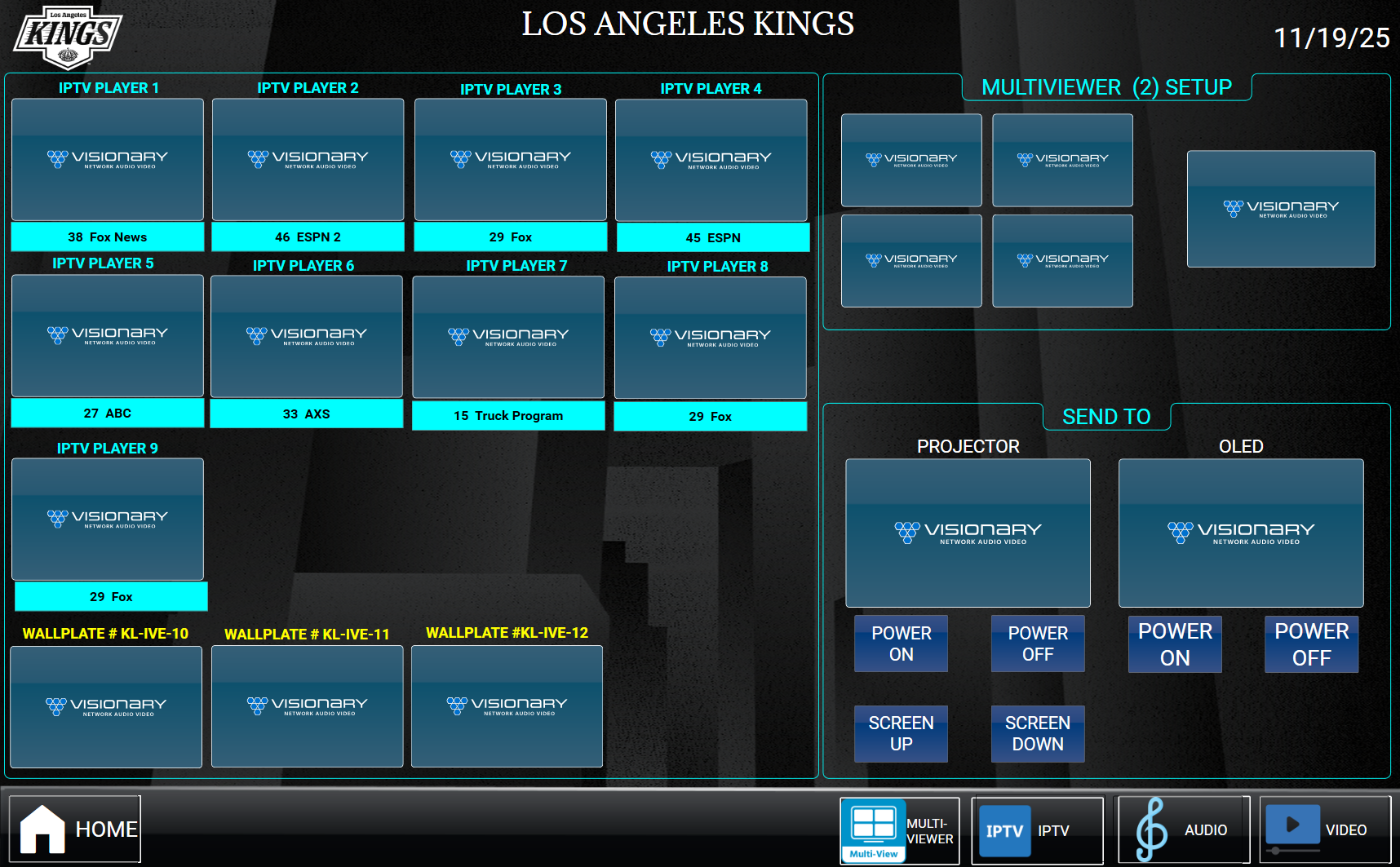
MULTI-VIEWER SETUP

There are three Multi-Viewers in the system, each Multi-Viewer is designated to it's own room.

  1. SELECT ANY SOURCE - If IPTV, you can also select the channel to view. Any other HDMI input within the room can also be selected. An active media channel will show on the touch panel with a graphic image of the media.
  2. SELECT WHICH MONITOR IN THE MULTI-VIEWER YOU WOULD LIKE TO PLACE IT. - There are four positions to choose from, select one of these positions.
  3. REPEAT THE STEPS - Repeat the same steps until you have selected sources for each of the four locations.
  4. MULTIVIEWER ICON - This Icon will now display the Multi-Viewer source.
  5. MULTIVIEWER ICON SOURCE - Selecting this Icon and then selecting the destination device you wish to view the source, will complete the Video Signal Route.

Some rooms have more than one display device to send the Source material to, you can select to send the media to any or all of the end points.

© Copyright ACS Advanced Cable Solutions. All Rights Reserved

Advanced Cable Solutions, 28343 Kelly Johnson Parkway, Unit 100, Valencia, CA 91355. acsdbi.com